File: //data/Geometra-Web-Client-master/node_modules/json2csv/README.md
# json2csv
Converts json into csv with column titles and proper line endings.
Can be used as a module and from the command line.
[![npm version][npm-badge]][npm-badge-url]
[![Build Status][travis-badge]][travis-badge-url]
[![Coverage Status][coveralls-badge]][coveralls-badge-url]
[![Dependency Status][dev-badge]][dev-badge-url]
See the [CHANGELOG] for details about the latest release.
## How to use
Install
```bash
$ npm install json2csv --save
```
Include the module and run or [use it from the Command Line](https://github.com/zemirco/json2csv#command-line-interface). It's also possible to include `json2csv` as a global using an HTML script tag, though it's normally recommended that modules are used.
```javascript
var json2csv = require('json2csv');
var fields = ['field1', 'field2', 'field3'];
try {
var result = json2csv({ data: myData, fields: fields });
console.log(result);
} catch (err) {
// Errors are thrown for bad options, or if the data is empty and no fields are provided.
// Be sure to provide fields if it is possible that your data array will be empty.
console.error(err);
}
```
[other examples](#example-1)
## Features
- Uses proper line endings on various operating systems
- Handles double quotes
- Allows custom column selection
- Allows specifying nested properties
- Reads column selection from file
- Pretty writing to stdout
- Supports optional custom delimiters
- Supports optional custom eol value
- Supports optional custom quotation marks
- Not create CSV column title by passing hasCSVColumnTitle: false, into params.
- If field is not exist in object then the field value in CSV will be empty.
- Preserve new lines in values. Should be used with \r\n line endings for full compatibility with Excel.
- Add a BOM character at the beginning of the csv to make Excel displaying special characters correctly.
## Use as a module
### Available Options
- `options` - **Required**; Options hash.
- `data` - **Required**; Array of JSON objects.
- `fields` - Array of Objects/Strings. Defaults to toplevel JSON attributes. See example below.
- `fieldNames` Array of Strings, names for the fields at the same indexes.
Must be the same length as `fields` array. (Optional. Maintained for backwards compatibility. Use `fields` config object for more features)
- `del` - String, delimiter of columns. Defaults to `,` if not specified.
- `defaultValue` - String, default value to use when missing data. Defaults to `<empty>` if not specified. (Overridden by `fields[].default`)
- `quotes` - String, quotes around cell values and column names. Defaults to `"` if not specified.
- `doubleQuotes` - String, the value to replace double quotes in strings. Defaults to 2x`quotes` (for example `""`) if not specified.
- `hasCSVColumnTitle` - Boolean, determines whether or not CSV file will contain a title column. Defaults to `true` if not specified.
- `eol` - String, it gets added to each row of data. Defaults to `` if not specified.
- `newLine` - String, overrides the default OS line ending (i.e. `\n` on Unix and `\r\n` on Windows).
- `flatten` - Boolean, flattens nested JSON using [flat]. Defaults to `false`.
- `unwindPath` - Array of Strings, creates multiple rows from a single JSON document similar to MongoDB's $unwind
- `excelStrings` - Boolean, converts string data into normalized Excel style data.
- `includeEmptyRows` - Boolean, includes empty rows. Defaults to `false`.
- `preserveNewLinesInValues` - Boolean, preserve \r and \n in values. Defaults to `false`.
- `withBOM` - Boolean, with BOM character. Defaults to `false`.
- `callback` - `function (error, csvString) {}`. If provided, will callback asynchronously. Only supported for compatibility reasons.
#### Example `fields` option
``` javascript
{
fields: [
// Supports label -> simple path
{
label: 'some label', // (optional, column will be labeled 'path.to.something' if not defined)
value: 'path.to.something', // data.path.to.something
default: 'NULL' // default if value is not found (optional, overrides `defaultValue` for column)
},
// Supports label -> derived value
{
label: 'some label', // Supports duplicate labels (required, else your column will be labeled [function])
value: function(row, field, data) {
// field = { label, default }
// data = full data object
return row.path1 + row.path2;
},
default: 'NULL', // default if value function returns null or undefined
stringify: true // If value is function use this flag to signal if resulting string will be quoted (stringified) or not (optional, default: true)
},
// Support pathname -> pathvalue
'simplepath', // equivalent to {value:'simplepath'}
'path.to.value' // also equivalent to {label:'path.to.value', value:'path.to.value'}
]
}
```
### Example 1
```javascript
var json2csv = require('json2csv');
var fs = require('fs');
var fields = ['car', 'price', 'color'];
var myCars = [
{
"car": "Audi",
"price": 40000,
"color": "blue"
}, {
"car": "BMW",
"price": 35000,
"color": "black"
}, {
"car": "Porsche",
"price": 60000,
"color": "green"
}
];
var csv = json2csv({ data: myCars, fields: fields });
fs.writeFile('file.csv', csv, function(err) {
if (err) throw err;
console.log('file saved');
});
```
The content of the "file.csv" should be
```
car, price, color
"Audi", 40000, "blue"
"BMW", 35000, "black"
"Porsche", 60000, "green"
```
### Example 2
Similarly to [mongoexport](http://www.mongodb.org/display/DOCS/mongoexport) you can choose which fields to export.
Note: this example uses the optional callback format.
```javascript
var json2csv = require('json2csv');
var fields = ['car', 'color'];
json2csv({ data: myCars, fields: fields }, function(err, csv) {
if (err) console.log(err);
console.log(csv);
});
```
Results in
```
car, color
"Audi", "blue"
"BMW", "black"
"Porsche", "green"
```
### Example 3
Use a custom delimiter to create tsv files. Add it as the value of the del property on the parameters:
```javascript
var json2csv = require('json2csv');
var fields = ['car', 'price', 'color'];
var tsv = json2csv({ data: myCars, fields: fields, del: '\t' });
console.log(tsv);
```
Will output:
```
car price color
"Audi" 10000 "blue"
"BMW" 15000 "red"
"Mercedes" 20000 "yellow"
"Porsche" 30000 "green"
```
If no delimiter is specified, the default `,` is used
### Example 4
You can choose custom column names for the exported file.
```javascript
var json2csv = require('json2csv');
var fields = ['car', 'price'];
var fieldNames = ['Car Name', 'Price USD'];
var csv = json2csv({ data: myCars, fields: fields, fieldNames: fieldNames });
console.log(csv);
```
### Example 5
You can choose custom quotation marks.
```javascript
var json2csv = require('json2csv');
var fields = ['car', 'price'];
var fieldNames = ['Car Name', 'Price USD'];
var opts = {
data: myCars,
fields: fields,
fieldNames: fieldNames,
quotes: ''
};
var csv = json2csv(opts);
console.log(csv);
```
Results in
```
Car Name, Price USD
Audi, 10000
BMW, 15000
Porsche, 30000
```
### Example 6
You can also specify nested properties using dot notation.
```javascript
var json2csv = require('json2csv');
var fs = require('fs');
var fields = ['car.make', 'car.model', 'price', 'color'];
var myCars = [
{
"car": {"make": "Audi", "model": "A3"},
"price": 40000,
"color": "blue"
}, {
"car": {"make": "BMW", "model": "F20"},
"price": 35000,
"color": "black"
}, {
"car": {"make": "Porsche", "model": "9PA AF1"},
"price": 60000,
"color": "green"
}
];
var csv = json2csv({ data: myCars, fields: fields });
fs.writeFile('file.csv', csv, function(err) {
if (err) throw err;
console.log('file saved');
});
```
The content of the "file.csv" should be
```
car.make, car.model, price, color
"Audi", "A3", 40000, "blue"
"BMW", "F20", 35000, "black"
"Porsche", "9PA AF1", 60000, "green"
```
### Example 7
You can unwind arrays similar to MongoDB's $unwind operation using the `unwindPath` option.
```javascript
var json2csv = require('json2csv');
var fs = require('fs');
var fields = ['carModel', 'price', 'colors'];
var myCars = [
{
"carModel": "Audi",
"price": 0,
"colors": ["blue","green","yellow"]
}, {
"carModel": "BMW",
"price": 15000,
"colors": ["red","blue"]
}, {
"carModel": "Mercedes",
"price": 20000,
"colors": "yellow"
}, {
"carModel": "Porsche",
"price": 30000,
"colors": ["green","teal","aqua"]
}
];
var csv = json2csv({ data: myCars, fields: fields, unwindPath: 'colors' });
fs.writeFile('file.csv', csv, function(err) {
if (err) throw err;
console.log('file saved');
});
```
The content of the "file.csv" should be
```
"carModel","price","colors"
"Audi",0,"blue"
"Audi",0,"green"
"Audi",0,"yellow"
"BMW",15000,"red"
"BMW",15000,"blue"
"Mercedes",20000,"yellow"
"Porsche",30000,"green"
"Porsche",30000,"teal"
"Porsche",30000,"aqua"
```
### Example 8
You can also unwind arrays multiple times or with nested objects.
```javascript
var json2csv = require('json2csv');
var fs = require('fs');
var fields = ['carModel', 'price', 'items.name', 'items.color', 'items.items.position', 'items.items.color'];
var myCars = [
{
"carModel": "BMW",
"price": 15000,
"items": [
{
"name": "airbag",
"color": "white"
}, {
"name": "dashboard",
"color": "black"
}
]
}, {
"carModel": "Porsche",
"price": 30000,
"items": [
{
"name": "airbag",
"items": [
{
"position": "left",
"color": "white"
}, {
"position": "right",
"color": "gray"
}
]
}, {
"name": "dashboard",
"items": [
{
"position": "left",
"color": "gray"
}, {
"position": "right",
"color": "black"
}
]
}
]
}
];
var csv = json2csv({ data: myCars, fields: fields, unwindPath: ['items', 'items.items'] });
fs.writeFile('file.csv', csv, function(err) {
if (err) throw err;
console.log('file saved');
});
```
The content of the "file.csv" should be
```
"carModel","price","items.name","items.color","items.items.position","items.items.color"
"BMW",15000,"airbag","white",,
"BMW",15000,"dashboard","black",,
"Porsche",30000,"airbag",,"left","white"
"Porsche",30000,"airbag",,"right","gray"
"Porsche",30000,"dashboard",,"left","gray"
"Porsche",30000,"dashboard",,"right","black"
```
## Command Line Interface
`json2csv` can also be called from the command line if installed with `-g`.
```bash
Usage: json2csv [options]
Options:
-h, --help output usage information
-V, --version output the version number
-i, --input <input> Path and name of the incoming json file.
-o, --output [output] Path and name of the resulting csv file. Defaults to console.
-f, --fields <fields> Specify the fields to convert.
-l, --fieldList [list] Specify a file with a list of fields to include. One field per line.
-d, --delimiter [delimiter] Specify a delimiter other than the default comma to use.
-e, --eol [value] Specify an EOL value after each row.
-z, --newLine [value] Specify an new line value for separating rows.
-q, --quote [value] Specify an alternate quote value.
-n, --no-header Disable the column name header
-F, --flatten Flatten nested objects
-u, --unwindPath <paths> Creates multiple rows from a single JSON document similar to MongoDB unwind.
-L, --ldjson Treat the input as Line-Delimited JSON.
-p, --pretty Use only when printing to console. Logs output in pretty tables.
-a, --include-empty-rows Includes empty rows in the resulting CSV output.
-b, --with-bom Includes BOM character at the beginning of the CSV.
```
An input file `-i` and fields `-f` are required. If no output `-o` is specified the result is logged to the console.
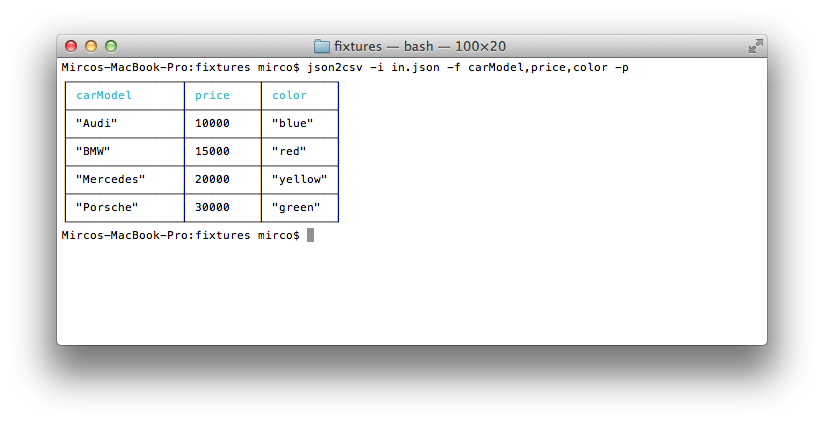
Use `-p` to show the result in a beautiful table inside the console.
### CLI examples
#### Input file and specify fields
```bash
$ json2csv -i input.json -f carModel,price,color
```
```
carModel,price,color
"Audi",10000,"blue"
"BMW",15000,"red"
"Mercedes",20000,"yellow"
"Porsche",30000,"green"
```
#### Input file, specify fields and use pretty logging
```bash
$ json2csv -i input.json -f carModel,price,color -p
```
#### Input file, specify fields and write to file
```bash
$ json2csv -i input.json -f carModel,price,color -o out.csv
```
Content of `out.csv` is
```
carModel,price,color
"Audi",10000,"blue"
"BMW",15000,"red"
"Mercedes",20000,"yellow"
"Porsche",30000,"green"
```
#### Input file, use field list and write to file
The file `fieldList` contains
```
carModel
price
color
```
Use the following command with the `-l` flag
```bash
$ json2csv -i input.json -l fieldList -o out.csv
```
Content of `out.csv` is
```
carModel,price,color
"Audi",10000,"blue"
"BMW",15000,"red"
"Mercedes",20000,"yellow"
"Porsche",30000,"green"
```
#### Read from stdin
```bash
$ json2csv -f price
[{"price":1000},{"price":2000}]
```
Hit <kbd>Enter</kbd> and afterwards <kbd>CTRL</kbd> + <kbd>D</kbd> to end reading from stdin. The terminal should show
```
price
1000
2000
```
#### Appending to existing CSV
Sometimes you want to add some additional rows with the same columns.
This is how you can do that.
```bash
# Initial creation of csv with headings
$ json2csv -i test.json -f name,version > test.csv
# Append additional rows
$ json2csv -i test.json -f name,version --no-header >> test.csv
```
## Include using a script tag (not recommended)
If it's not possible to work with node modules, `json2csv` can be declared as a global by requesting `dist/json2csv.js` via an HTML script tag:
```
<script src="node_modules/json2csv/dist/json2csv.js"></script>
<script>
console.log(typeof json2csv === 'function'); // true
</script>
```
### Building
When developing, it's necessary to run `webpack` to prepare the built script. This can be done easily with `npm run build`.
If `webpack` is not already available from the command line, use `npm install -g webpack`.
## Testing
Run the following command to test and return coverage
```bash
$ npm test
```
## Contributors
Install require packages for development run following command under json2csv dir.
Run
```bash
$ npm install
```
Could you please make sure code is formatted and test passed before submit Pull Requests?
See Testing section above.
## But I want streams!
Check out my other module [json2csv-stream](https://github.com/zemirco/json2csv-stream). It transforms an incoming
stream containing `json` data into an outgoing `csv` stream.
## Similar Projects
* [Papa Parse](http://papaparse.com/)
## License
See [LICENSE.md].
[npm-badge]: https://badge.fury.io/js/json2csv.svg
[npm-badge-url]: http://badge.fury.io/js/json2csv
[travis-badge]: https://travis-ci.org/zemirco/json2csv.svg
[travis-badge-url]: https://travis-ci.org/zemirco/json2csv
[coveralls-badge]: https://coveralls.io/repos/zemirco/json2csv/badge.svg?branch=master
[coveralls-badge-url]: https://coveralls.io/r/zemirco/json2csv?branch=master
[dev-badge]: https://david-dm.org/zemirco/json2csv.svg
[dev-badge-url]: https://david-dm.org/zemirco/json2csv
[CHANGELOG]: https://github.com/zemirco/json2csv/blob/master/CHANGELOG.md
[LICENSE.md]: https://github.com/zemirco/json2csv/blob/master/LICENSE.md
[flat]: https://www.npmjs.com/package/flat